
How to Modify Scheduled Edits
Modifying a scheduled edit can be tricky with Ablestar Bulk Product Editor, depending if it has already processed or not.
Users are able to reschedule the dates of an edit (if the start date has not yet passed). Changing the parameters of the edit is not possible. To workaround this, cloning the previous schedule allows modificaitons (and then cancel the previous).
There are a few other options you can consider, depending if the edit is upcoming, or already processed:
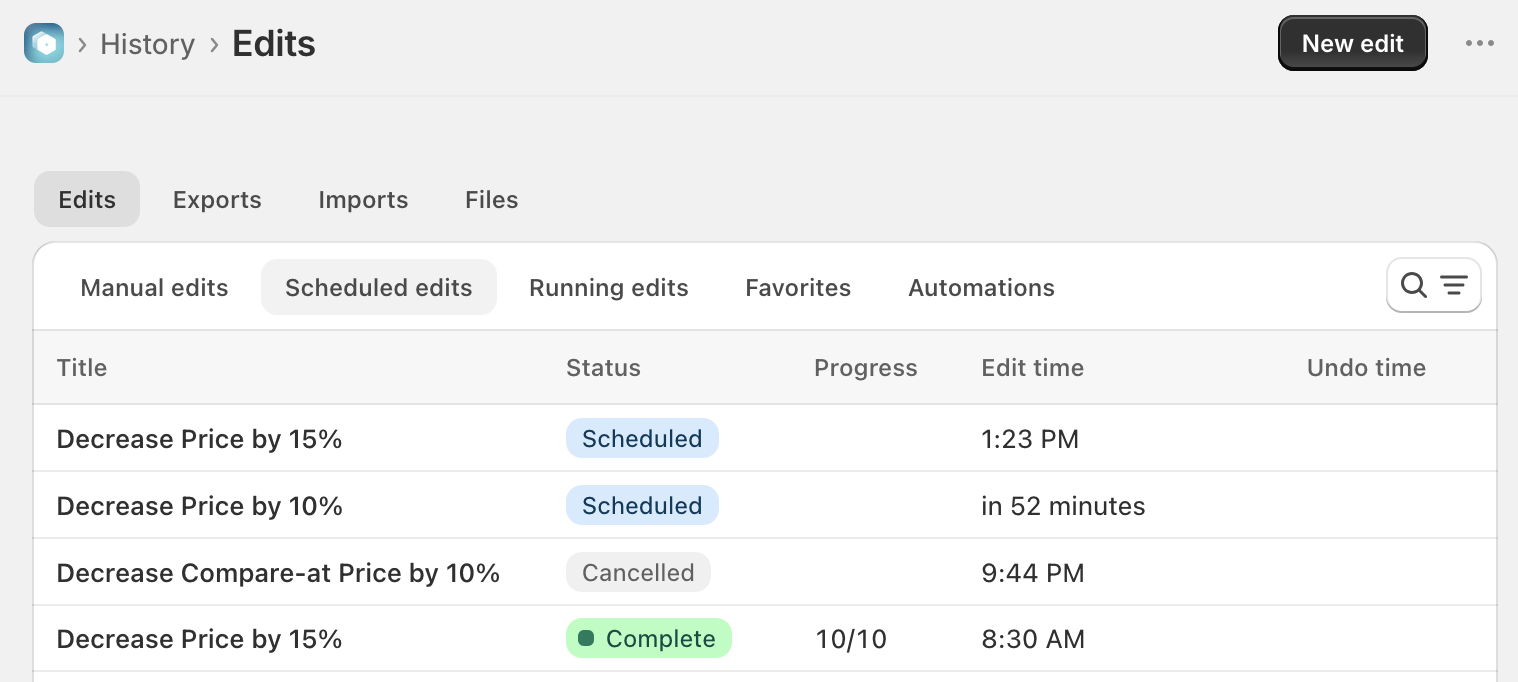
First, pull up your history of scheduled and processed edits. From the app dashboard, click to view your History of scheduled edits and determine which you would like to modify:
History menu → Edits → Scheduled edits
1. Upcoming Scheduled Edits (Not yet processed)
From the History menu → Edits → Scheduled edits view, click the specific line item that has not yet processed and you will see the Progress view appear with several options:
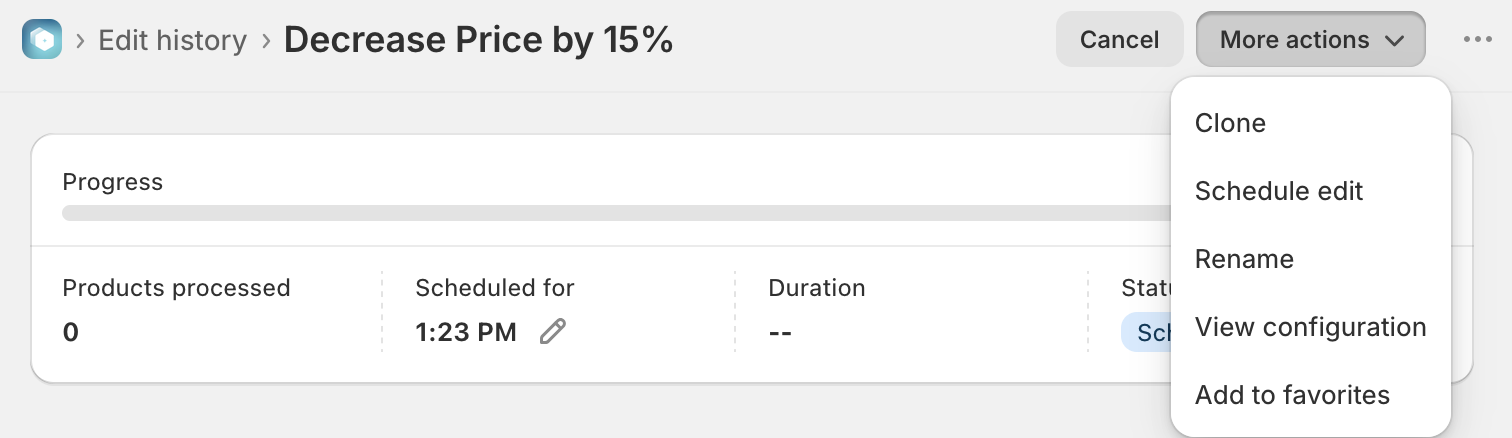
- Cancel edit: this will cancel any existing edit that has not already been processed
- Clone edit: this will allow you to duplicate the scheduled edit, modify the configuration and re-save as a new scheduled edit
- Schedule edit: allows you to specify the 'Undo' time/date for the upcoming scheduled edit, if it was not already configured on creation
- Rename edit: this allows you to rename the existing scheduled edit, to something more unique or helpful
- View configuration: this displays the exact configuration (without modification ability). Check to confirm time created, the start or end time/date, exact change parameters and the editor that created the scheduled edit.
- Add to favorites: checking this option will add your scheduled edit to the 'Favorites' tab, listed under the History → Edits → Favorites menu
2. Previous Edits (Already processed)
There are a few more options available to you if an edit has already been processed.
- Undo: This will completely revert the already processed database change
- Re-run: If you need to re-run the edit (without any modifications)
- Download log: Allows an export of the processed edits which includes old value, new value and a processed timestamp
- More actions
- Clone: this method copies the original edit and also allows modifications
- Schedule edit: allows you to specify the 'Undo' option for the past scheduled edit, if it was not already specified during creation
- Rename: this allows you to rename the existing scheduled edit, to something more unique or helpful
- View configuration: will display the exact configuration (without modification ability). Includes time/date created, the start or end time/date, exact change parameters and the editor that created the scheduled edit.
- Add to favorites: will add your scheduled edit to the 'Favorites' tab, listed under the History → Edits → Favorites menu
Considerations on Cloning
You might not see any products appear if the field you are searching for is the same field you edited in the original search. For example, if you changed the price on all products matching the < $20 criteria, then when you clone the edit, you will not see any remaining products listed < $20 because the prices were changed.
✅ Tips and Troubleshooting
- You can undo both re-run and clone edit changes quickly if you make a mistake
- Learn how to access your history for up to 180 days
(05.333)