
Editing Shipping Dimensions
You can use Ablestar Bulk Product Editor to modify shipping dimensions in bulk. Shipping dimensions are the packed size of each variant: the length, width, and height of each item ready to ship.
In the Shopify admin, this is the Packed product size row in the Shipping section of a variant. Shopify uses these sizes to pick the smallest of your saved packages that fits an order.
Prep
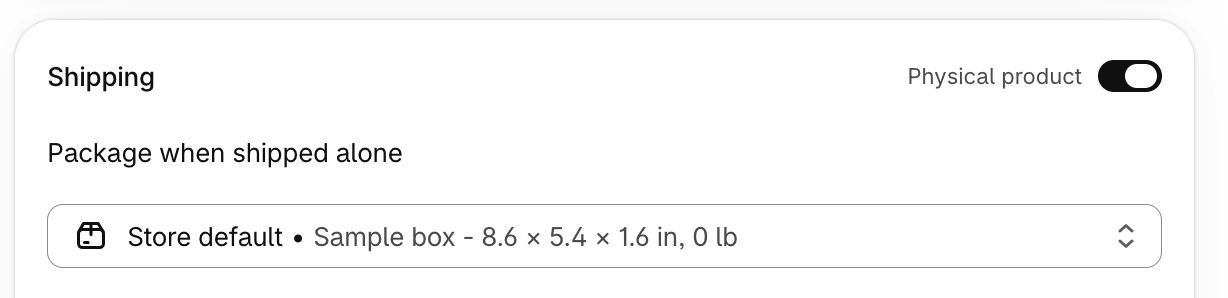
Confirm your set of products are configured for physical shipments.
From any product view for a specific product, ensure that the product is set for a physical shipment:
Choose if you prefer the 'In-App Edit' or 'Spreadsheet' method to bulk edit your products:
1. In-App Edits
Once you have a set of filtered data, from the 'Configure modifications' view, search for the Shipping Dimensions field to edit:
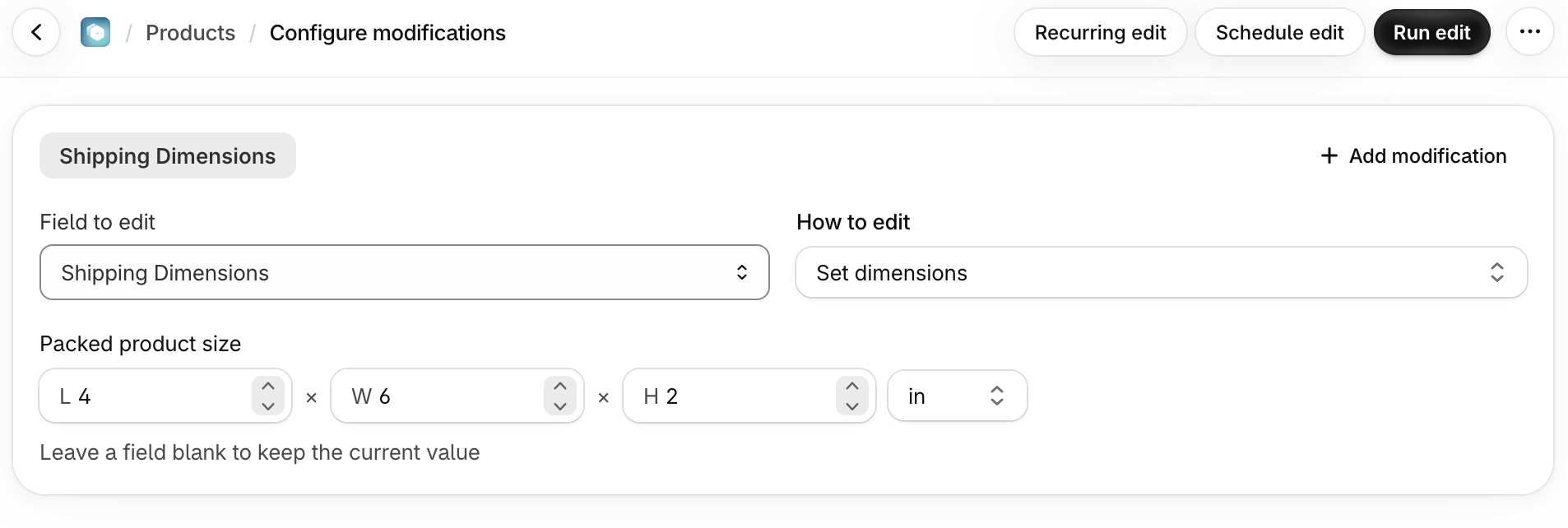
There are several options available to bulk edit your shipping dimensions:
- Set dimensions: Replace all existing dimensions or add new
- Increase by amount: Increase existing dimension by a set amount
- Decrease by amount: Decrease existing dimension by a set amount
- Increase by %: Increase existing dimension by a set amount
- Decrease by %: Decrease existing dimension by a percentage
- Convert unit: Convert existing unit between inches or centimeters
- Remove dimensions: Clear the saved dimensions from your variants
Shopify only supports centimeters and inches for measurement units.
Specify the new dimensions to edit and confirm the preview of products that will change. Products without shipping specified will be visible on the preview so you can remove or edit if needed:
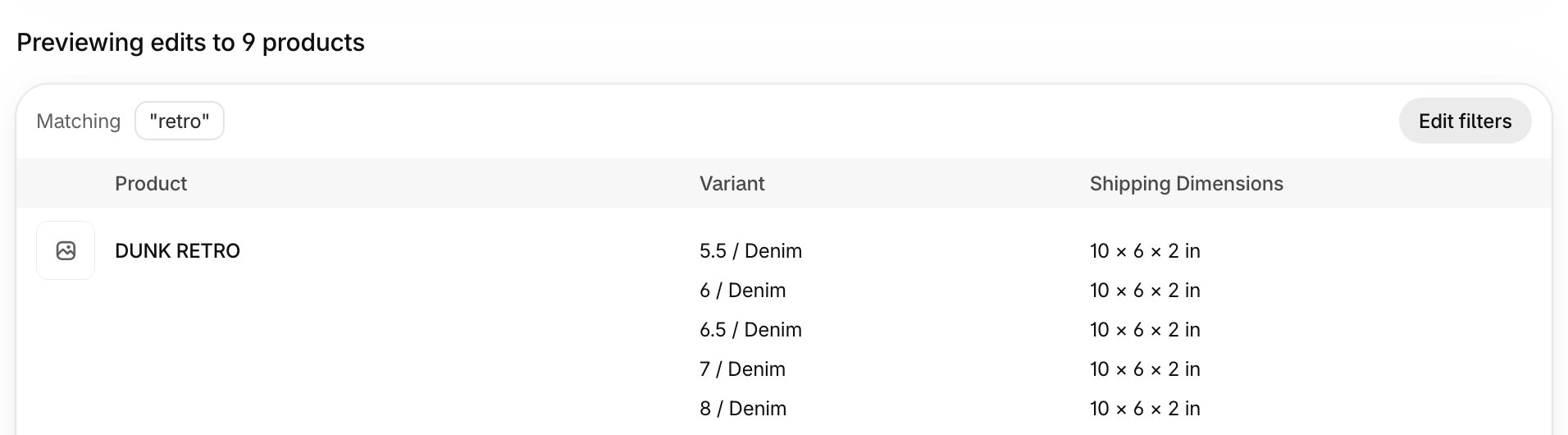
Click Run edit to apply changes. Once edit is finished, click Undo to revert and start over.
2. Spreadsheet Edits
Since we are editing variant-level fields, it is important to specify a variant-level identifier on the spreadsheet:
- Packed Length
- Packed Width
- Packed Height
- Packed Dimensions Unit

Upload the same columns as a spreadsheet edit and they will map automatically.
Blank cells keep the current value, so a sheet with only a Packed Width column changes only the width.
✅ Tips and Troubleshooting
- Products have to specify Shipping → Physical product specified before editing dimensions
- Leave a dimension blank to keep the current value intact
- Learn how to bulk edit product weight
- Remember to specify a variant-level identifier in the first column for spreadsheets
(03.339)