
Editing Multiple Barcodes per Variant
A variant in Shopify can have up to 20 barcodes. Each barcode can have a type: GTIN, UPC, EAN, ISBN, ASIN, or NS-PID. A barcode without a type is a Custom barcode, which is useful for internal codes that don't follow a standard. With Ablestar Bulk Product Editor you can add, remove, and replace these barcodes in bulk.
The Primary Barcode
The first barcode on a variant is considered the primary barcode. Shopify uses it wherever only one barcode fits, such as on labels, in sales channel feeds, and in apps that are unable to support multiple barcodes.
Shopify keeps the primary barcode first and sorts the other barcodes by value.
You can choose which barcode is the primary one, but sorting is not yet an option, to put barcodes in a specific order.
In-App Edits
Once your products are filtered and ready to edit, from the 'Configure modifications' view, specify the 1st barcode option:
- Barcodes (all barcodes, with types) edits the whole list of barcodes and their types.
- Barcode (ISBN, UPC, GTIN, etc.) edits only the primary barcode and keeps the others that already exist. Read Editing Barcodes (ISBN, UPC and GTIN) for this field.
Choose the best How to edit option:
- Add barcodes: Adds the barcodes and keeps the existing ones. The primary barcode stays the same. If a variant already has one of the barcodes, the barcode gets the type you selected.
- Add as primary barcode: Adds the barcodes and makes the first one the primary barcode. The existing barcodes stay.
- Remove barcodes: Removes the barcodes from every variant that has them. Upper and lower case don't matter, and the type doesn't matter. If you remove the primary barcode, the next barcode becomes the primary one.
- Set barcodes (overwrites existing): Replaces all of the variant's barcodes. The first barcode becomes the primary barcode. If you leave the list empty, the edit removes all barcodes.
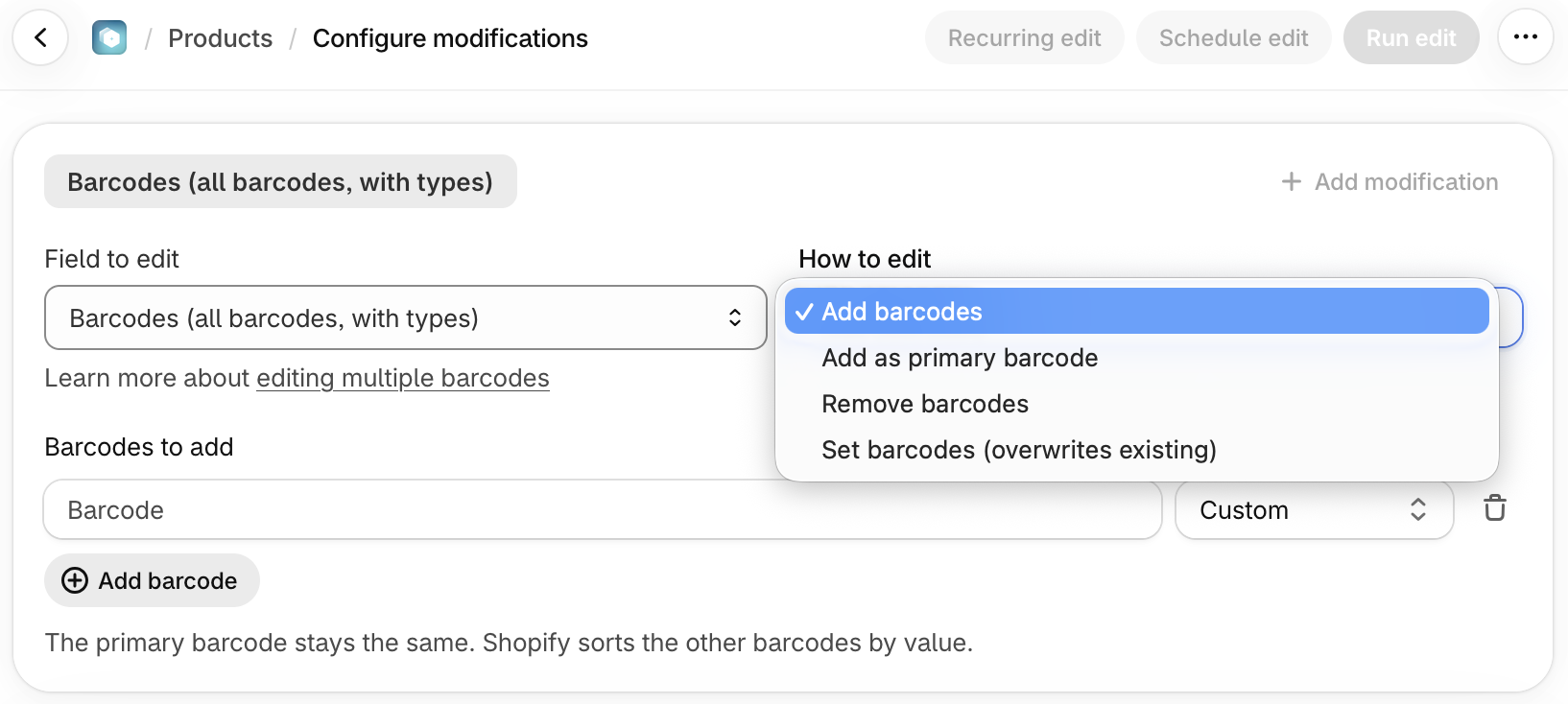
Add your first barcode to the Barcodes to add field and then select the type of each barcode in the picklist next to it.
Click Add barcode button for additional barcodes and use the delete icon to remove, if needed. Confirm the preview. Added barcodes are green, and removed barcodes are red and struck through.
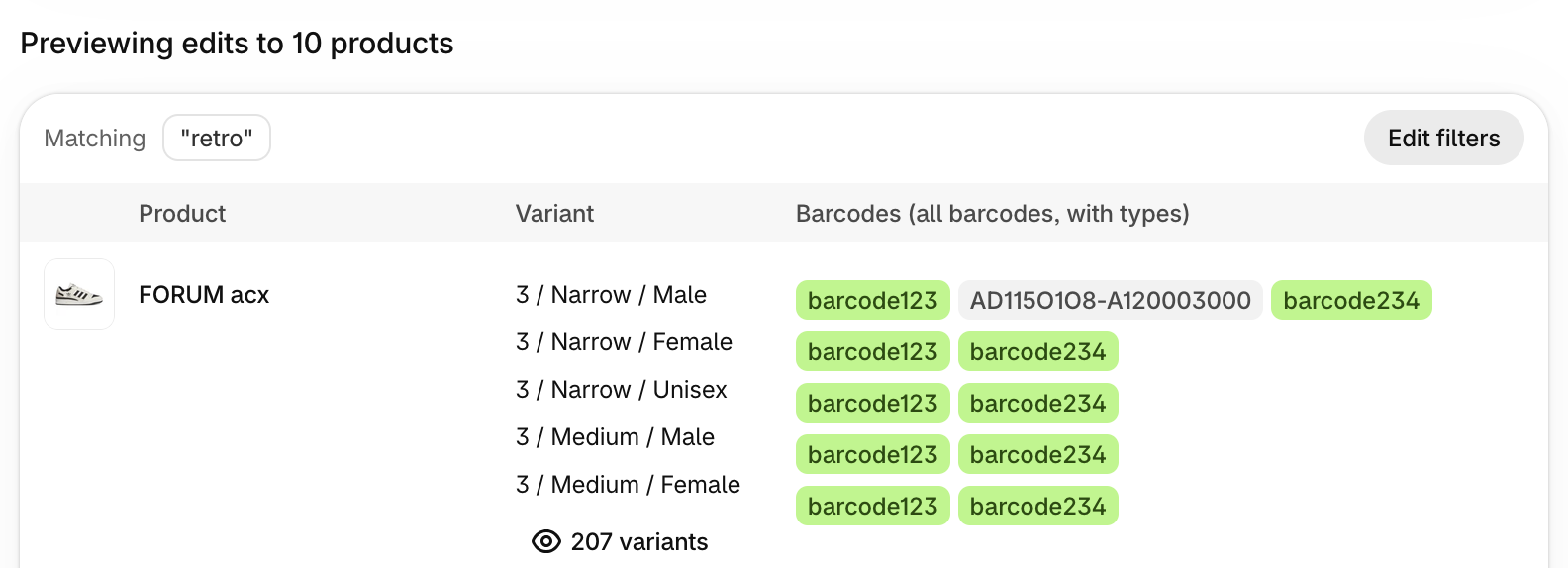
You can use these options in one-off edits, scheduled edits, and product rules.
Spreadsheet Edits
Format
A spreadsheet cell can hold several barcodes. Shopify supports several formats (GTIN, UPC, EAN, ISBN, ASIN, and NS_PID, or custom) can be used. The system recognizes both upper and lower case. Tips:
- Use a semicolon (
;) between multiple barcodes. - Only ISBN barcodes can have spaces. Remove spaces and hyphens from UPC, EAN, and GTIN barcodes.
- To set a barcode's type, put the type and a colon in front of the barcode, for example
isbn:9780262033848. - A barcode without a type is saved as a Custom barcode.
- If a barcode contains a colon, a semicolon, or a backslash, put a backslash in front of it:
\:,\;, or\\.
For example, isbn:9780262033848; upc:036000291452; INTERNAL-123 is three barcodes: an ISBN, a UPC, and a Custom barcode.
Upload
Prep your spreadsheet using the following commands:
| Column | What it does |
|---|---|
| Barcodes | Replaces all of the variant's barcodes. The first barcode becomes the primary barcode. Enter [DELETE] to remove all barcodes. |
| Barcodes: Add | Adds the barcodes and keeps the existing ones. |
| Barcodes: Add as primary | Adds the barcodes and makes the first one the primary barcode. |
| Barcodes: Remove | Removes the barcodes in the cell. |
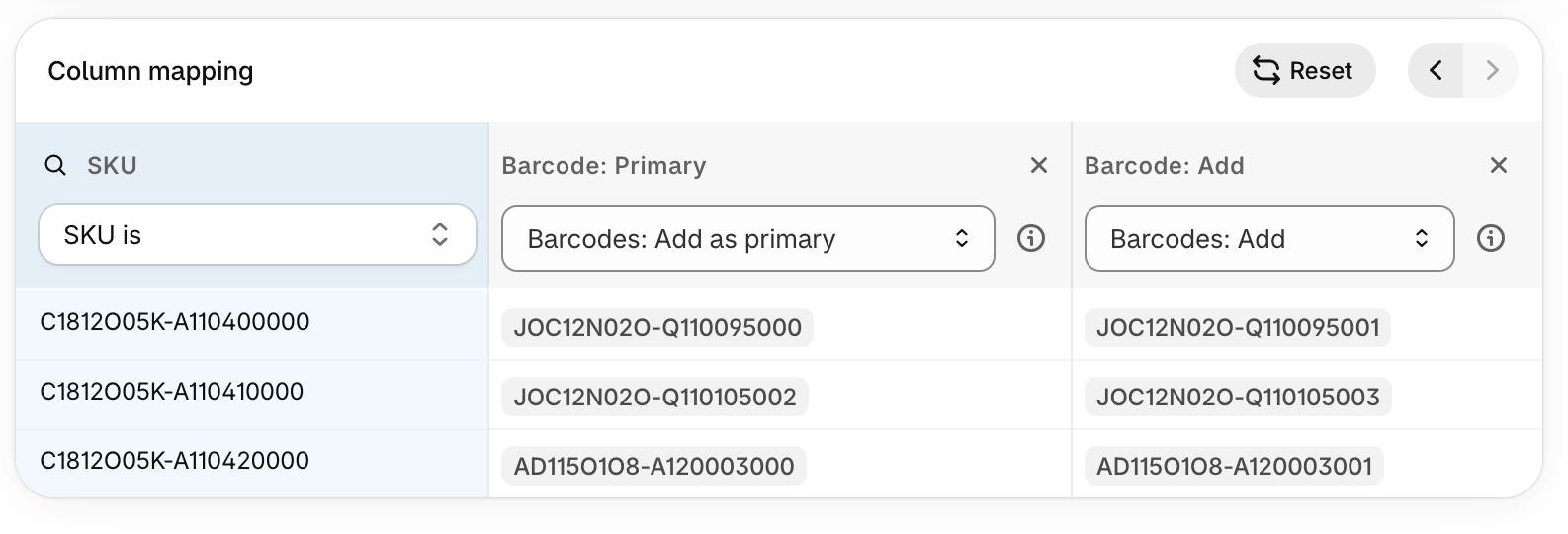
Click to upload your spreadsheet with similar fields:

Preview Mapped Fields
And then confirm your preview and mapped columns are correct before clicking to Run edit:
Confirm your data: one row can update several variants without warning.
When your spreadsheet is using a variant-level identifier column like Barcode/UPC, each row is matched against all of a variant's barcodes, not just its primary one. Since you can put several barcodes in one cell, the row will update every variant that has at least one of them.
Tips and troubleshooting
- Barcodes must match exactly, including leading zeros, so format the column as text in Excel so the leading zero does not get stripped.
- Custom barcodes are allowed as a unique type.
(3.338)