
4. Redirects
Ablestar Link Manager allows you to quickly scan your list of redirects and current sync status. You have two tabs available from this screen:
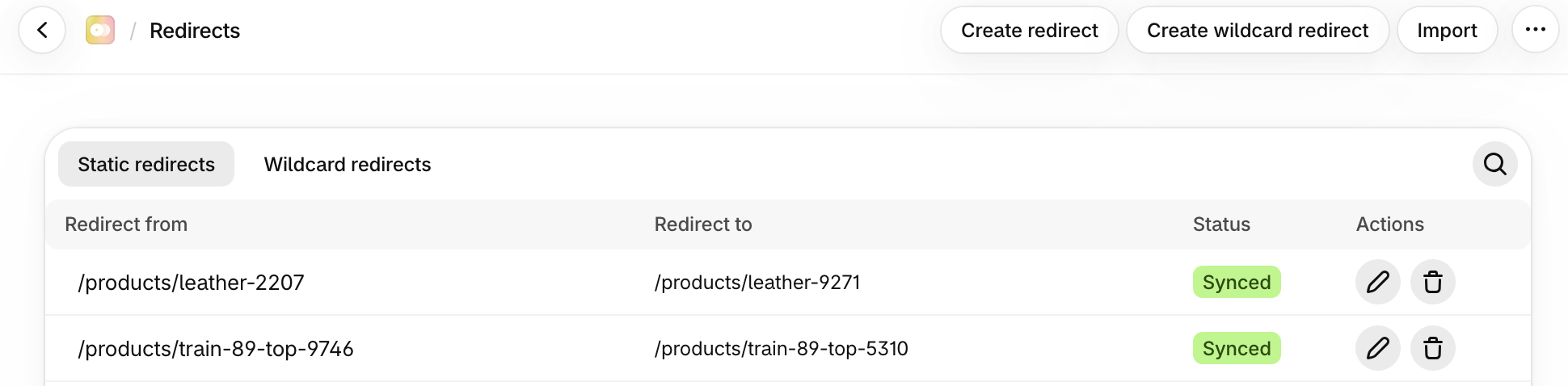
From each tab you have the same button options:
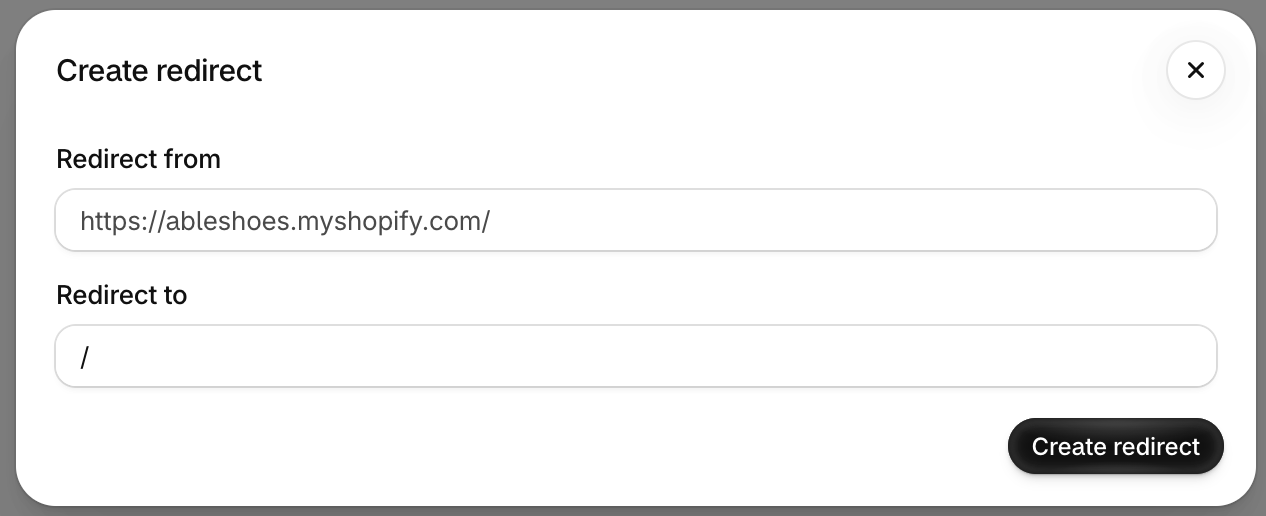
- Create redirect button: specify new redirects by entering from and to options in the popup window:
- Create wildcard redirect button: allows you to configure wildcards
- Import button: prompts you for a spreadsheet upload with two columns to import redirect from and redirect to fields
- Search field: type in any term or keyword to narrow down the list of results
Each row has specific columns:
- Redirect from: specifies the URL traffic was redirected away from
- Redirect to: specifies the new URL
- Status: indicates if redirects configured outside of this app have been synced. Learn how to resync data
- Pencil icon: click to edit the redirect
- Trash icon: allows you to delete any redirect item (permanent action and not reversible)
1. Static redirects tab
This tab lists all of your static redirects. Any row can be modified or deleted. If redirects were configured recently through the Shopify dashboard (Content → Menus → Redirect), the status might have to be updated. Learn how to resync data.
2. Wildcard redirects tab
This tab lists all of your wildcard redirects. A wildcard redirect is a rule that uses a pattern (typically an asterisk) to match and redirect multiple URLs or subdomains simultaneously, rather than requiring individual redirects for each page. Click here to learn configuration tips.
✅ Tips and Troubleshooting
- Deleting redirects is not reversible
- Learn more about creating Wildcard Redirects and scheduling automated scans
(lm.345)