
Setting up Crawler Access Signature
AI crawlers now visit online stores far more than they used to. To protect stores, Shopify limits automated visits more often, and that can include Link Manager's site scan. When a scan is limited, it can stop early and miss broken links.
A crawler access signature tells Shopify that you allowed Link Manager to scan your store. You create it in your Shopify admin and paste it into Link Manager. Your scans then reach your pages reliably.
Set up your crawler access signature
Step 1: Create the signature in Shopify
- In Link Manager, go to Settings and scroll to Crawler access.
- Click Online store preferences. Your Shopify admin opens in a new tab.
- Scroll to Crawler access and click Create signature.
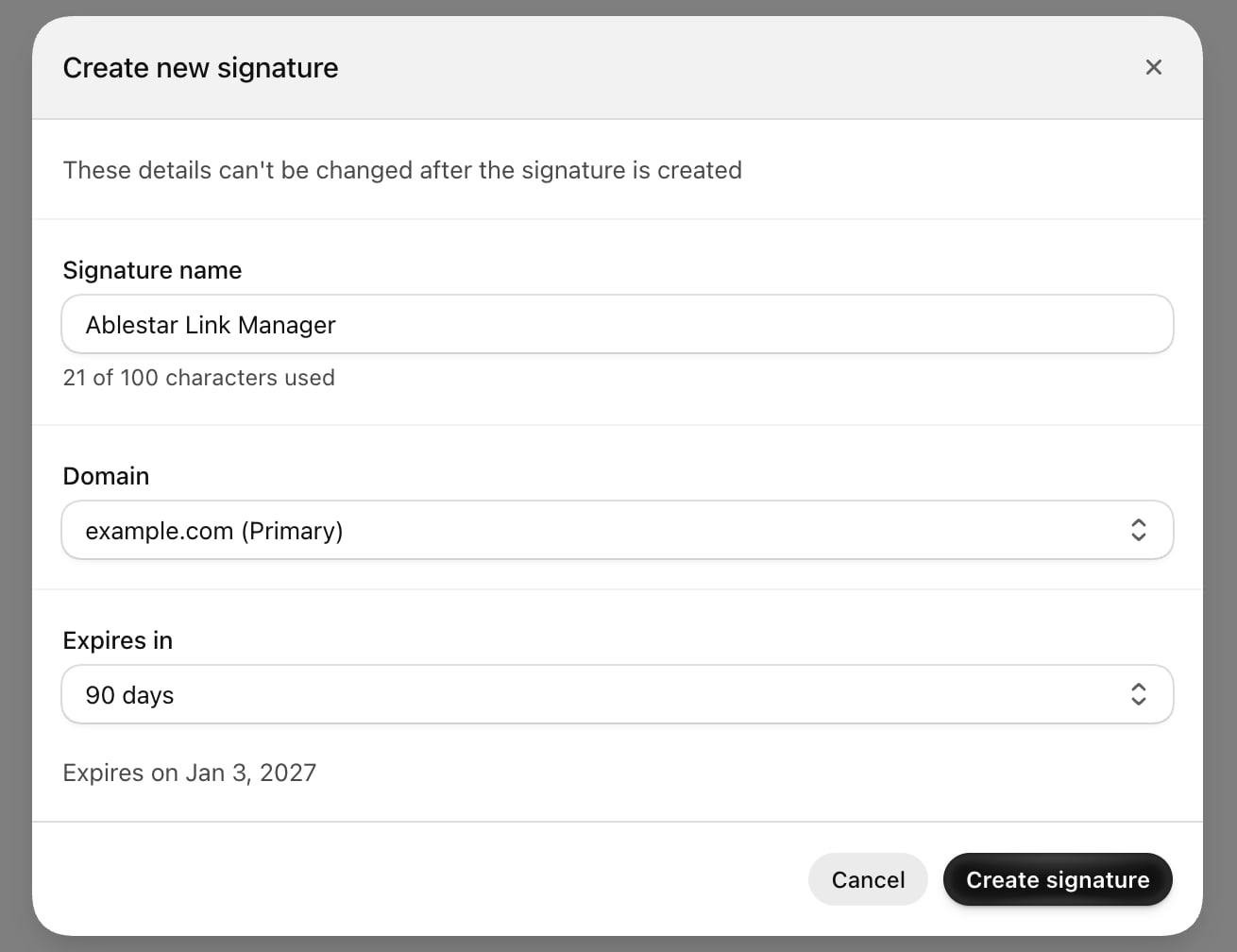
- In the Create new signature window:
- Signature name: enter a name you'll recognize, for example
Ablestar Link Manager. - Domain: keep your primary domain, the one marked (Primary).
- Expires in: select 90 days.
- Signature name: enter a name you'll recognize, for example
- Click Create signature.
Step 2: Paste the signature into Link Manager
Your new signature now shows in the Crawler access list in Shopify. Click its name to see all its values. Each value has a copy button.
- Copy the Signature value and paste it into the Signature field in Link Manager.
- Copy the Signature-Input value and paste it into the Signature-Input field in Link Manager.
- Click Save.
You don't need to copy Signature-Agent. Link Manager adds it for you.
When you save, Link Manager checks the signature with Shopify. If it's correct, you see an Active badge and the date it expires. Your next scan uses it automatically.
FAQs
What happens when the signature expires?
After 90 days the signature expires, and Link Manager shows Expired. Scans keep running, but without the signature. Create a new signature in Shopify and paste its values into Link Manager to keep scans reliable.
Is it safe?
Yes. The signature only lets Link Manager view your public store pages, the same pages any visitor sees. It doesn't give access to your admin, orders, customers or checkout.
Link Manager says the signature isn't valid. What should I do?
Check that you copied both values from the same signature, used the copy buttons, and picked your primary domain. If it still doesn't work, create a new signature and paste it again.
I changed my primary domain. Do I need a new signature?
Yes. A signature only works on the domain it was created for. Create a new one for your new primary domain.